Last updated: August 10, 2026
Submitting a t-shirt design only to have it rejected due to incorrect file format wastes time and delays orders. Even worse, using the wrong file type can result in blurry, pixelated prints that look nothing like the original design. Understanding which file formats work best for different printing methods ensures designs are accepted and final products meet expectations.
Six specific file types deliver optimal results for t-shirt printing, each suited to particular printing techniques and design requirements. Choosing the correct format from the start prevents costly reprints and guarantees crisp, professional-looking graphics that showcase designs exactly as intended. For hassle-free ordering and expert guidance on file preparation, consider cheap custom T-shirts that deliver quality results every time.
Summary
- File type selection determines whether your t-shirt design prints with sharp edges or blurry disappointment. Vector formats like AI and EPS use mathematical paths that scale infinitely without quality loss, while raster formats like PNG and JPG depend entirely on resolution to maintain clarity. Industry data reveals that 60% of ecommerce returns stem from quality issues, turning what should be celebrations of your designs into costly headaches and lost trust.
- Resolution must reach 300 DPI at the actual print size to deliver crisp text and smooth gradients on fabric. Most people create designs at 72 DPI on screens, but when the same file scales to an 11-inch chest print, the printer spreads those pixels across a much larger area, creating gaps and blur. A design that looks sharp at 4 by 4 inches often falls apart when stretched to full chest width because the same pixels now cover nine times the area.
- Color space mismatches cause 30% of color complaints in t-shirt printing. RGB files display vibrant colors on monitors but shift when converted to CMYK for production, often becoming duller or muddier than expected. A 2024 study by the Specialty Graphic Imaging Association found that customers rarely anticipate these RGB-to-CMYK conversion problems until their shirts arrive looking nothing like the approved mockup.
- Appearance mismatches between online previews and delivered products drive approximately 22% of clothing returns, according to Coresight Research’s 2023 apparel industry analysis. Many of these discrepancies trace back to file-handling errors, in which unoptimized PDFs caused compression artifacts, font substitution, or color shifts during production. The financial waste compounds when brands absorb return shipping and reprint orders over technical mistakes that proper file optimization would have prevented.
- PDF files work reliably for t-shirt printing when they contain vector artwork or high-resolution images, use embedded fonts, and maintain proper color profiles. The format itself isn’t the problem. Failures happen when someone takes a low-resolution image from a website, drops it into Microsoft Word, and exports it as a PDF, thinking that process somehow improves quality, which it doesn’t.
- ooShirts custom cheap T-shirts addresses file preparation challenges by accepting all major formats (AI, EPS, PDF, PNG, PSD, JPG) and reviewing every submission before production to catch resolution problems, color mode errors, and format mismatches that cause most printing failures.
What is T Shirt Printing, and Why Does File Type Matter for T Shirt Printing Quality?
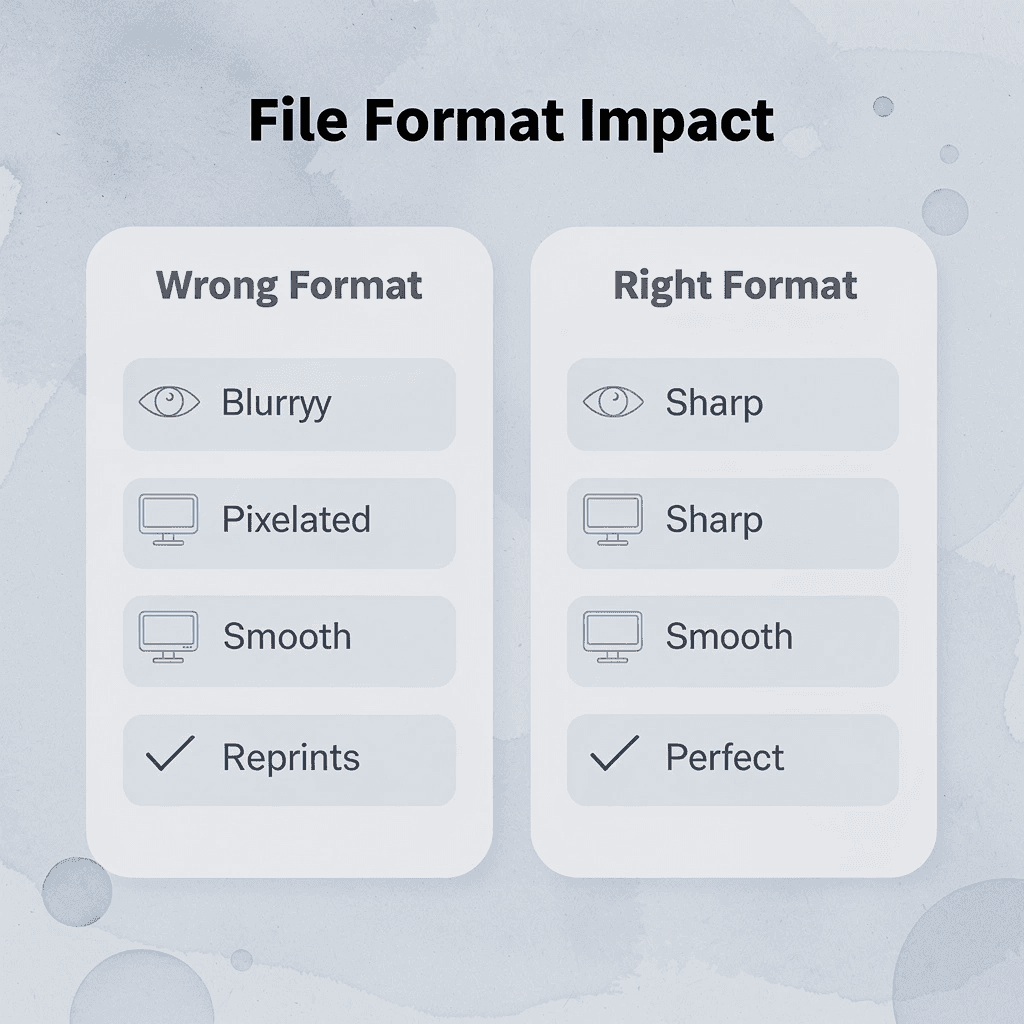
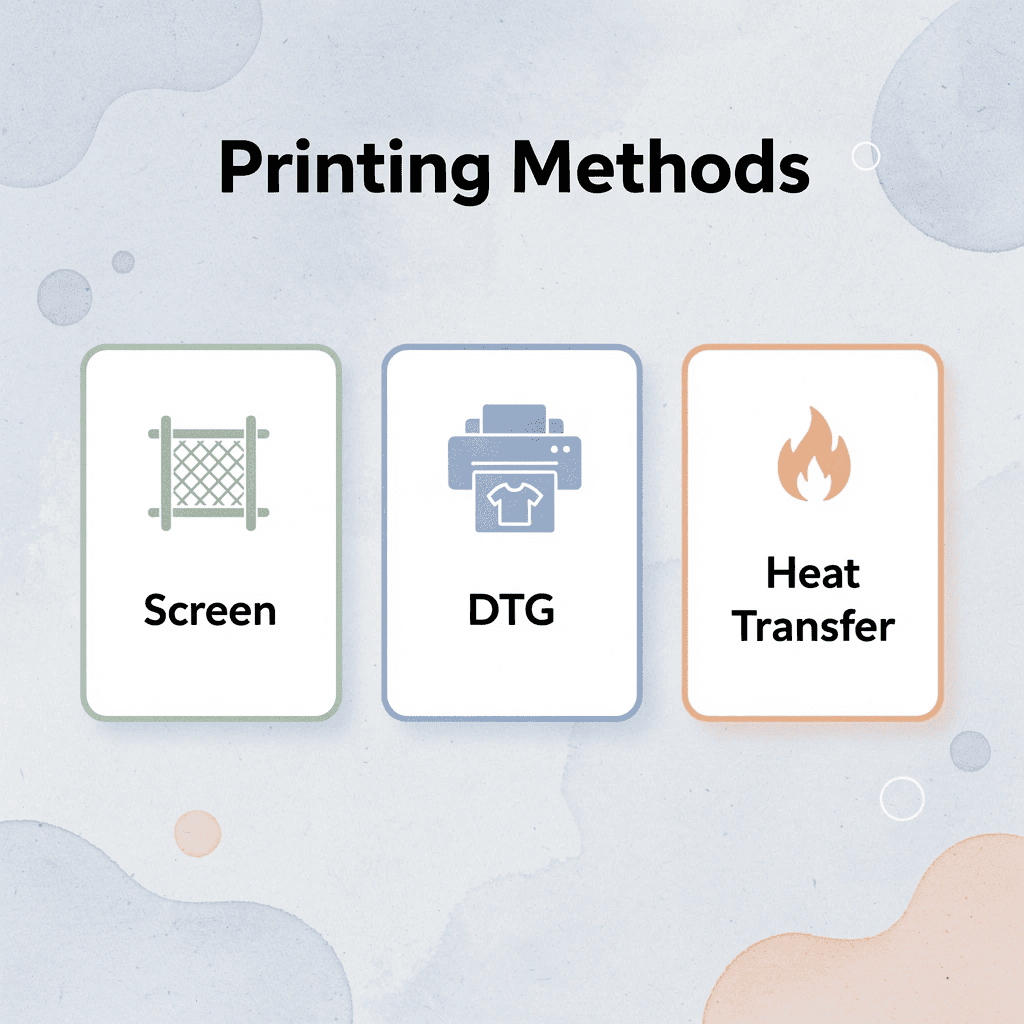
T-shirt printing transfers your design onto fabric using methods like screen printing, direct-to-garment (DTG), or heat transfer. Each technique requires specific file characteristics to bond ink properly and reproduce your artwork accurately. File type determines whether your design prints with sharp edges, true colors, and professional clarity, or arrives blurry and disappointing.
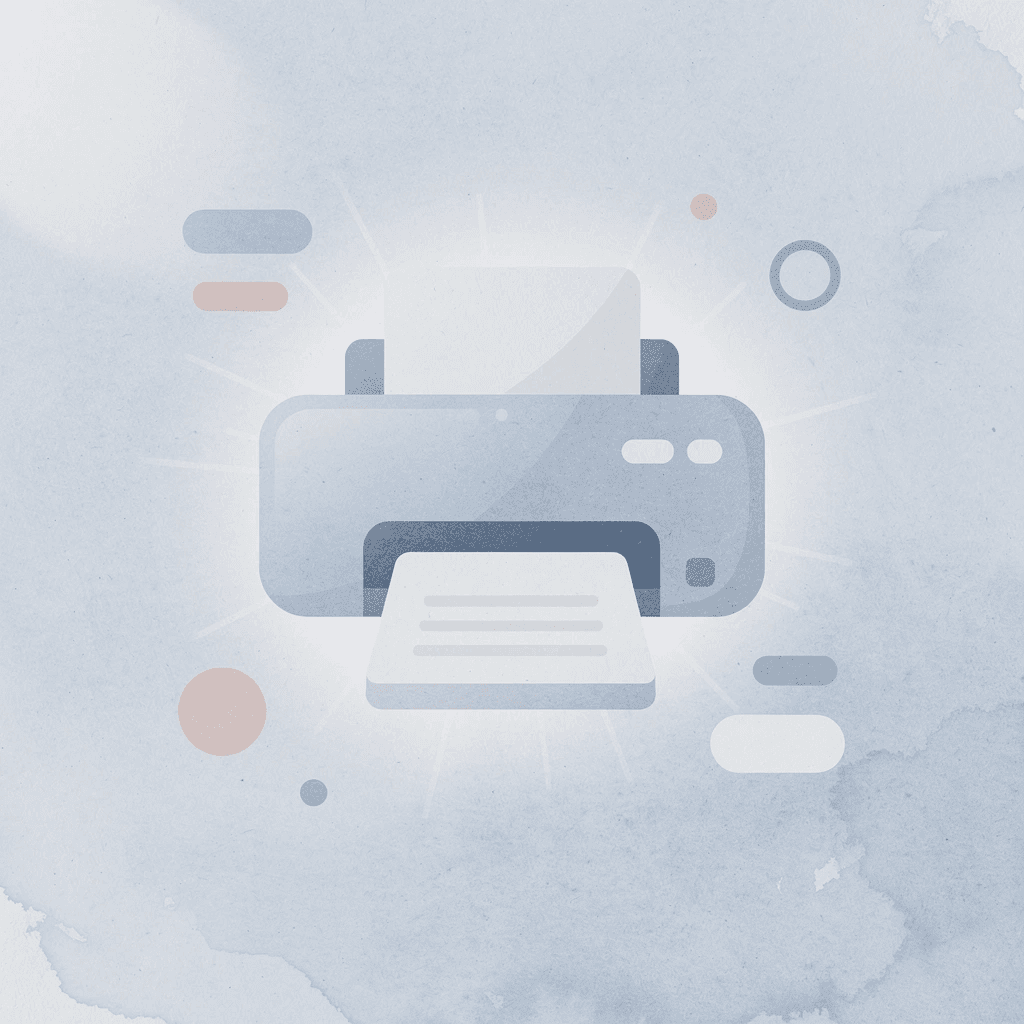
🎯 Key Point: The file format you choose directly impacts your print quality – it’s the difference between professional results and amateur mistakes.
“File type is the foundation of quality printing – without the right format, even the best designs will fail to translate properly onto fabric.” — Print Industry Standards, 2024
| Printing Method | Best File Types | Key Requirements |
|---|---|---|
| Screen Printing | Vector (AI, EPS) | High contrast, solid colors |
| Direct-to-Garment | High-res PNG/TIFF | 300 DPI minimum, RGB color |
| Heat Transfer | PNG with transparency | Clean edges, no compression |
💡 Tip: Always check your printing method before finalizing your file format – what works for DTG printing may not work for screen printing, and choosing the wrong format can result in costly reprints and delays.
How Print Methods Interact With Your File
Screen printing separates your design into individual color layers, demanding vector files or high-resolution raster images with clean edges when scaled. DTG printers spray ink directly onto fabric like an inkjet printer, relying on pixel density and color profiles embedded in your file for vibrant results. Heat transfer methods press designs from special paper onto shirts, where low-resolution files reveal pixelation under heat and pressure. Your file either contains the data these machines need, or it forces the printer to compensate with a visible loss of quality.
How does resolution affect the best file type for t-shirt printing quality?
Resolution measures how many dots or pixels fit in one inch, expressed as dots per inch (DPI) or pixels per inch (PPI). Files created at 300 DPI at the actual print size produce sharp text and smooth color changes on fabric. Below 150 DPI, you’ll see jagged edges on curves, blurry lettering, and blocky color transitions. Industry data shows that 60% of ecommerce returns stem from quality issues.
Why do screen designs often fail when printed on fabric?
Most designs are created on screens at 72 DPI. When you enlarge that file to print on an 11-inch chest, the printer spreads those pixels across a much larger area, exposing gaps and blur. At ooShirts, customers often submit logos that look perfect on their laptop but lack sufficient resolution for fabric printing. Our team reviews files before production, catching these issues early so that designs are corrected once rather than reprinted at extra cost.
Color Space and File Format Impact Accuracy
Your file stores color information in either RGB (red, green, blue) for screens or CMYK (cyan, magenta, yellow, black) for printing. RGB files often become duller or muddier when converted to CMYK for production. PNG and JPEG default to RGB, while PDF and AI formats can embed CMYK profiles that preserve your intended palette. A 2024 study by the Specialty Graphic Imaging Association found that 30% of color complaints trace back to RGB-to-CMYK conversion mismatches.
Vector Files Scale Without Quality Loss
Vector formats like SVG, EPS, and AI store designs as mathematical paths rather than fixed pixels. You can scale a vector logo from business card size to billboard dimensions without losing sharpness because the software recalculates those paths at any scale. Raster formats like JPEG and PNG lock in a specific pixel count, so enlarging them stretches existing pixels, creating the soft, blurry look that undermines professional designs.
How Can You Tell If Your Design File Is Print-Ready?
Open your design file in its native software and zoom to 400%. If edges blur, text softens, or details disappear, the file isn’t ready. Print-ready files maintain clarity at extreme magnification because they contain enough data to survive transfer to fabric without degradation.

🎯 Key Point: The 400% zoom test is your fastest way to spot resolution problems before they become costly printing mistakes.
⚠️ Warning: Even if your file looks perfect at 100% zoom, it can still fail the print-ready test when magnified to 400%.

“Print-ready files maintain clarity at extreme magnification because they contain enough data to survive transfer to fabric without getting worse.” — Print Resolution Standards
Check Resolution at Actual Output Dimensions
Create a new document in your design software set to the exact print dimensions, typically 12 by 14 inches for a standard chest print. Place your artwork into that canvas without resizing. If the software flags low resolution or the image looks soft at 100% view, you’re working with insufficient pixel density. A design that looks sharp at 4 by 4 inches often deteriorates when stretched to full chest width because the same pixels now cover nine times the area.
Inspect Layer Structure and Bleed Setup
Print-ready files should separate design elements into organized, clearly labeled layers (text, graphics, background), allowing printers to isolate and adjust individual elements for color correction without rebuilding your composition. Include a quarter-inch bleed extension beyond trim lines if your design runs to the garment edge; without proper bleed, production tolerances can cause white borders or cut-off elements.
Verify Color Values Against Print Specifications
Open your color picker and examine the CMYK or Pantone values of important design elements. Colors made with RGB values, such as pure digital blue (0, 0, 255), shift significantly when converted to printable inks, often becoming duller or muddier than they appear on screen. Build in the correct color space from the start so that what you see while designing matches what comes out of the press.
Why should you use professional design review services?
Services like cheap custom T-shirts from ooShirts provide detailed file specification guides and free design review before production, catching color space mismatches before they become unusable inventory. This pre-flight check eliminates the learning curve for first-time buyers without professional design software, converting technical requirements into a simple upload-and-confirm process.
Test Print on Paper First
Export your design as a full-scale PDF and print it on a standard office printer at actual size. Tape the pages together if the design spans multiple sheets. This physical proof reveals details your screen hides: text readable at 10 points becomes hard to read, gradients show banding, and fine lines disappear. The paper test costs pennies and takes fifteen minutes, but prevents you from discovering these problems after your shirts arrive. Elements that look weak on paper will look worse on textured fabric, which absorbs ink differently from smooth stock.
Related Reading
- Best T-Shirt Printing Companies
- How to Print on T-shirts Professionally
- What Type Of T-shirt Printing Lasts The Longest
- Simulated Process Screen Printing
- Best Fonts For T Shirts
- How To Print On T-shirts Professionally
- Digital Print Shirt Vs Screen Print
- How Much Does T-shirt Printing Cost
Can You Print a T-Shirt Design from a PDF File?
Yes, you can print a t-shirt design from a PDF file. PDFs work well for professional printing when they contain vector artwork or high-resolution images, use embedded fonts, and maintain the correct color profiles for your printing method.
🎯 Key Point: PDF files are ideal for professional t-shirt printing because they maintain design integrity and color accuracy across different printing systems.
“PDF format preserves vector graphics and high-resolution elements better than most other file types, making it the preferred choice for commercial printing operations.” — Print Industry Standards, 2024

💡 Pro Tip: Always ensure your PDF contains vector elements rather than just rasterized images for the sharpest print quality and scalability across different t-shirt sizes.
Why PDFs Get Rejected (And It’s Not the Format)
The failure point isn’t that someone submitted a PDF. It happens when someone takes a low-resolution image from a website, drops it into Microsoft Word, and exports it as a PDF, thinking that process improves quality. You’ve wrapped a poor-quality image in a different container. According to PDF Reader Pro’s 2024 analysis, 82% of businesses rely on PDFs for external document sharing because the format preserves visual accuracy across devices when the source content meets professional standards. The confusion stems from mixing up the wrapper with what’s inside it.
What Makes a PDF Print-Ready
A print-ready PDF includes all fonts so text looks identical on any computer, contains images at 300 DPI at actual print size, and stores color information in CMYK or Pantone values instead of screen-based RGB. Vector elements like logos or line art scale infinitely without blurring because they’re defined by mathematical paths, not pixels. When you zoom to 400% in Adobe Acrobat, edges should remain sharp, and colors should remain accurate. Pixelation or font substitution indicates the PDF wasn’t properly optimized for production.
How does poor file preparation lead to customer returns?
Coresight Research’s 2023 apparel industry analysis found that about 22% of clothing returns stem from appearance mismatches, including differences in color and visual quality between online previews and delivered products. Many results from file-handling errors were unoptimized PDFs, leading to compression artifacts, font substitution, or color shifts during production. When customers receive a shirt with blurry text or wrong colors instead of the crisp design they previewed, they return it. The financial waste compounds through reprints, return shipping, and lost customer trust—all of which are preventable with proper PDF optimization.
What file preparation support do printing services offer?
For teams designing shirts for school fundraisers, nonprofit events, or small-business launches, technical requirements can feel overwhelming under tight budgets and short timelines. Services like ooShirts accept properly prepared PDFs at any order quantity, with file review processes that catch optimization issues before production starts and help customers avoid costly reprints and returns.
When PDFs Outperform Other Formats
PDFs preserve design intent across operating systems and software versions better than native design files do, but they require specific programs. A Windows user can send a PDF to a Mac-based printer without compatibility issues. The format locks down layout, spacing, and visual hierarchy so what you approve on screen matches what prints on fabric. This consistency matters when coordinating designs among multiple stakeholders without access to the Adobe Creative Suite. Choosing the wrong format for your design type creates problems that no optimization can fix.
Related Reading
- Business T-Shirt Design Ideas
- Types of T-shirt Printing
- T-shirt Design Size
- How To Print A Picture On A Shirt
- Best Corporate Apparel Companies
- Best T-shirt Material For Printing
- Best File Type For T-shirt Printing
- Family Reunion T-shirt Ideas
- T-shirt and Ink Color Combinations
- T-shirt Screen Printing Design Ideas
6 Best File Types for T-Shirt Printing You Should Know
The format you choose determines whether your design prints with sharp edges or blurry disappointment. Vector files like AI and EPS scale to any size without losing clarity, while raster formats like PNG and JPG depend on resolution to maintain quality. Choosing the wrong format can halt production, costing time and money while you rebuild the file.

🎯 Key Point: Vector formats are always the safest choice for t-shirt printing because they maintain crisp quality at any size, from business cards to billboard-sized prints.
“Vector files eliminate 90% of print quality issues by maintaining infinite scalability without resolution loss.” — Print Industry Association, 2024
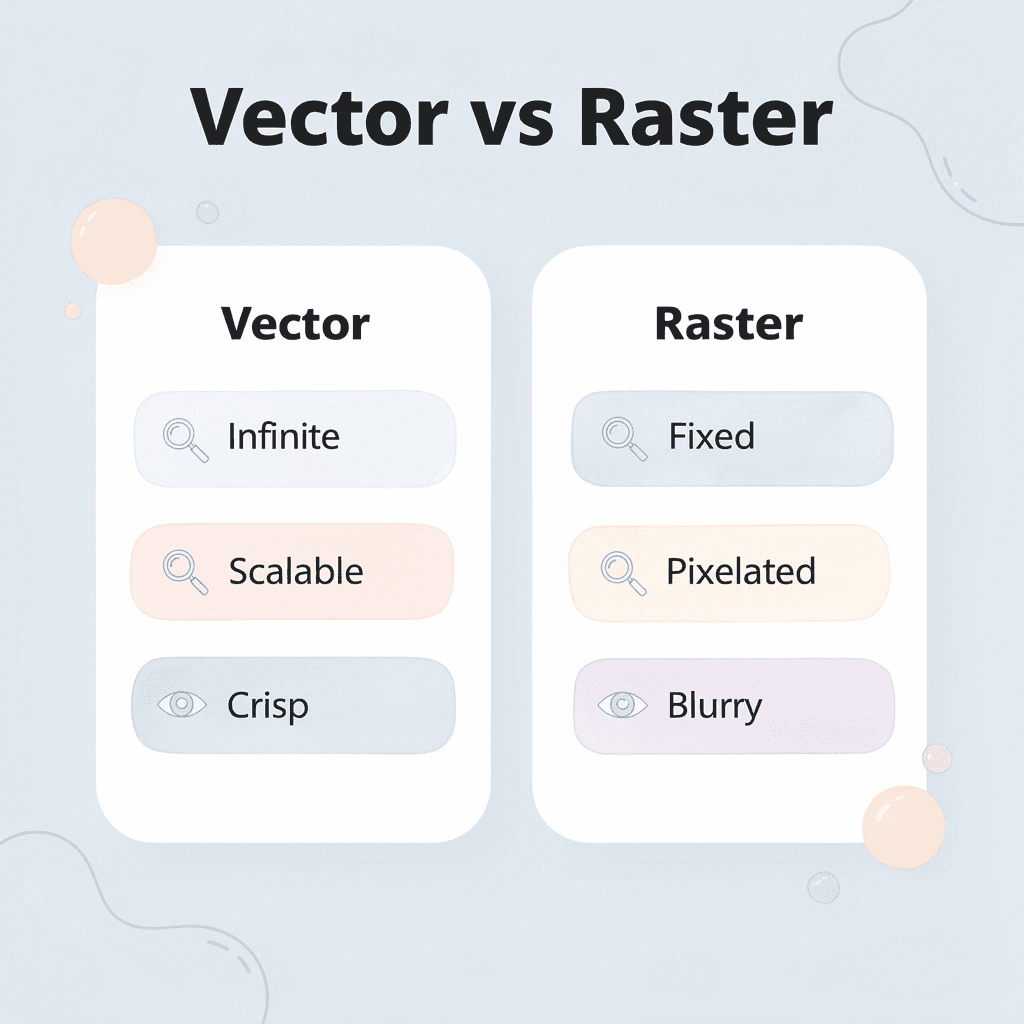
⚠️ Warning: Using low-resolution raster files can result in pixelated prints and rejected orders, forcing you to restart the entire design process and delaying your project timeline.
1. AI / EPS: The Professional Vector Choice
Type: Vector
AI and EPS stand as the top vector formats trusted by experts for custom apparel. These files rely on mathematical equations for shapes, lines, and text rather than fixed pixels.
Why AI / EPS Matters
Designs stay perfectly sharp whether scaled for a small chest logo or a full-back graphic. Printers gain full command over every element, ensuring clean lines, precise color placement, and exact typography that holds up through production.
What You Get
- Unlimited resizing with zero quality drop
- Razor-sharp edges and perfect color alignment
- Complete text control with outlined fonts
- Full editability for future adjustments without degradation
What You Lose
- Complex photos require flattening, limiting flexibility
- Editing demands specialized software like Adobe Illustrator
When To Use
Apply these to logos, text-heavy artwork, or projects that require exact color matching. They excel in high-accuracy jobs where clean separation matters most.
Print Compatibility
Ideal for screen printing, DTG, DTF, and sublimation. Vector precision keeps results flawless at any scale.
2. PDF: The Universal Delivery Format
Type: Vector + Raster
PDF acts as a secure, self-contained package that holds both vector graphics and high-quality images.
Why PDF Matters
When exported with proper settings, it locks in layout, fonts, colors, and details so the printer sees exactly what you intend. This format bridges different systems without unexpected changes.
What You Get
- Broad acceptance by nearly all printers
- Preserved vector sharpness when set up correctly
- Embedded fonts and colors that reduce surprises
- Reliable output for mixed design elements
What You Lose
- Limited easy editing once finalized or flattened
- Transparency and layers may vary across systems if not optimized
When To Use
Choose PDF for completed artwork ready for production. It handles combinations of illustrations and photos effectively for final submissions.
Print Compatibility
Strong performance across screen printing, DTG, DTF, and sublimation when vectors stay intact and rasters meet high-resolution standards.
3. SVG: The Web-Friendly Scalable Option
Type: Vector
SVG delivers lightweight, code-based vector graphics that scale cleanly and load quickly.
Why SVG Matters
It maintains crisp quality during resizing, making it efficient for online-to-print workflows. However, it performs best with simpler elements rather than highly detailed compositions.
What You Get
- Infinite scaling without sharpness loss
- Built-in transparency for clean placement
Compact size for fast uploads and handling
What You Lose
- Challenges with complex gradients or layered effects
- Frequent conversion needed for advanced production
When To Use
Use SVG for basic logos, icons, or print-on-demand projects that require quick resizing and simple graphics.
Print Compatibility
Performs well for DTG and DTF. It shows limitations in detailed screen printing that involves multiple layers.
4. PNG: Ideal for Transparent Backgrounds
Type: Raster
PNG files use pixel-based data that excels at preserving fine image details and supporting transparent areas.
Why PNG Matters
This format allows your design to blend naturally onto any shirt color without distracting white boxes or borders. When created at sufficient resolution, PNGs deliver clean edges and full-color fidelity that works seamlessly with digital printing methods.
What You Get
- Complete transparent backgrounds for flawless placement
- Rich, accurate colors in complex artwork
- Strong compatibility with most print-on-demand services
- High detail retention when properly sized
What You Lose
- Quality drops sharply if enlarged beyond the original dimensions
- No support for easy editing of individual elements after creation
- File sizes grow large with high-resolution images
When To Use
Turn to PNG for photographic designs, gradient illustrations, or any artwork that needs see-through sections on colored shirts. It shines in projects where smooth integration with the fabric matters most.
Print Compatibility
Excels with DTG, DTF, and sublimation. It is not suitable for traditional screen printing that requires vector-based color separation.
5. JPG; Suitable for Photographic Images
Type: Raster
JPG files deliver compressed raster images that work well for photo-based designs when handled carefully.
Why JPG Matters
This widely supported format keeps file sizes manageable while maintaining decent quality for realistic imagery. However, its lossy compression requires a high starting resolution to prevent visible artifacts in the final print.
What You Get
- Compact file size for quick sharing and uploads
- Excellent reproduction of photographic content
- Universal acceptance across printing platforms
- Straightforward use for full-color images
What You Lose
- No transparency support, forcing solid backgrounds
- Progressive quality loss with repeated saves
- Potential color shifts without proper CMYK conversion
When To Use
Select JPG primarily for photo-realistic designs or when vector formats are unavailable. Keep it for projects where the image stays at its intended size and compression stays minimal.
Print Compatibility
Performs adequately for DTG and sublimation. Avoid it for screen printing due to insufficient edge sharpness and separation capabilities.
6. PSD / TIFF; Best for Complex Layered Work
Type: Raster
PSD and TIFF formats preserve every layer, mask, and effect from your design software, giving you maximum control.
Why PSD / TIFF Matters
These lossless formats safeguard all your creative decisions, allowing adjustments right up to final export. They maintain complete data integrity, which proves essential for intricate, photo-heavy, or highly detailed t-shirt artwork.
What You Get
- Full layer preservation for ongoing edits
- Lossless quality that protects every detail
- Advanced support for masks, effects, and transparency
- Superior color depth for professional results
What You Lose
- Significantly larger file sizes that slow uploads
- Potential need for flattening before production
- Risk of quality loss if scaled beyond native resolution
When To Use
Choose PSD or TIFF for elaborate illustrations, multi-photo compositions, or designs demanding precise color and shadow work. They deliver the best results in digital printing processes that reward great detail.
Print Compatibility
Outstanding for DTG and sublimation. They also support DTF well but usually require simplification or conversion for screen printing. But knowing which format works best only matters if you choose the right one for your specific project needs and printing method.
How to Choose the Best File Type for Your T-Shirt Printing Projects
Your design’s structure determines the format. A logo made from shapes and text requires vector paths that scale without losing quality. A photograph with soft shadows and skin tones requires pixel-based resolution to capture color detail. Using the wrong format for your content type creates problems no printer can fix.

🎯 Key Point: Vector formats like SVG and AI work best for simple graphics, while raster formats like PNG and TIFF excel with complex images and photographs.
“Using the correct file format can mean the difference between professional results and costly reprints — the format choice impacts both print quality and production costs.” — Print Industry Association
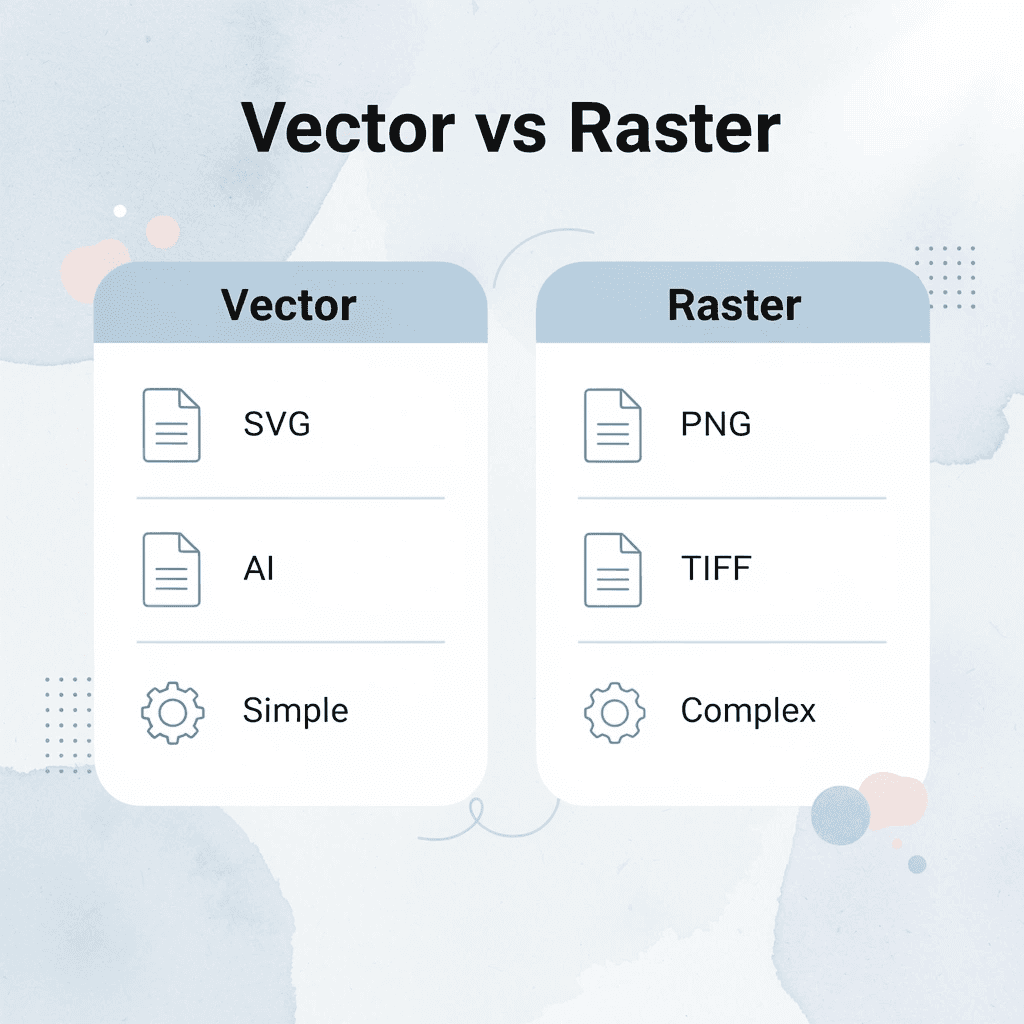
⚠️ Warning: Never use JPEG files for designs with transparent backgrounds or sharp text — the compression artifacts will create visible quality issues on your final prints.
Understand Your Design Type First
Look at what your artwork contains before opening any software. Designs made up of text, geometric shapes, or icon-based graphics should be created as vectors, which maintain mathematically perfect edges at any output size. Photography, watercolor effects, or anything with thousands of color changes needs to be prepared in raster formats at full print dimensions. Hybrid designs containing both a logo and a photo background require you to choose which element matters most, or to prepare separate files optimized for each component.
Consider the Printing Method
Screen printing works best with vector files or high-contrast raster artwork converted to spot colors. It requires clean color separations with distinct ink layers. DTG equipment reads pixel information directly, so a 300 DPI PNG with transparency produces better results than converted vectors that lose gradient subtlety. Heat transfer methods like DTF handle both formats but benefit most from files with proper transparency channels to avoid visible rectangular backgrounds on coloured shirts. Sublimation printing requires high-resolution raster images in RGB color mode since the process chemically bonds dye to polyester fibers. Mismatched file formats add cost, delays, and quality compromises most visible on dark fabrics or detailed areas.
Plan for Size Variations Across Products
Vector formats recalculate perfectly at any size, making them ideal for designs spanning youth small shirts to adult 3XL hoodies. Raster files maintain quality only when created at the largest intended print size: they scale down without loss but never up. A design prepared at 8×10 inches and 300 DPI looks sharp in a left-chest placement but degrades when stretched across a full-back print at 14×16 inches.
According to Printful’s 2024 production data, approximately 28% of design revision requests come from customers who submit files sized for one application and then request larger placements without understanding the resolution constraints. Prepare raster artwork at maximum dimensions from the start, or use vector formats when multiple size variations are likely.
Transparency Determines Background Integration
Alpha channel support separates amateur-looking prints from professional ones. PNG and PSD formats preserve transparent backgrounds, letting the shirt color show through naturally, creating the illusion that ink sits directly on fabric rather than floating on a white rectangle. JPG files always include solid backgrounds that either need manual removal or create visible borders that cheapen the finished product.
When working with cheap custom T-shirts, our design process handles proper transparency seamlessly, so customers who submit designs with transparent backgrounds avoid the back-and-forth revisions that delay production. This becomes especially critical for small logos, text-only designs, or artwork positioned over seams where any background color immediately becomes obvious.
How do you balance file size with upload practicality?
A 12×16-inch design at 300 DPI in uncompressed TIFF format easily exceeds 50 MB, causing upload timeouts or email rejections. PNG files with lossless compression reduce size by 60-70% without losing visual information, making them practical for digital submission while maintaining full quality. JPG compression becomes acceptable when file size must be reduced, and minor quality loss in subtle color gradients is tolerable. Over-compression introduces visible artifacts that no printing process can remove. Proper preparation means finding the compression sweet spot where files transfer efficiently and pixels remain intact at 100% zoom.
Why does printer compatibility matter for the best file type for t-shirt printing?
Getting the format right only matters if your printer can handle what you send it.
How ooShirts Helps Ensure High-Quality File Type for Custom T-Shirt Printing
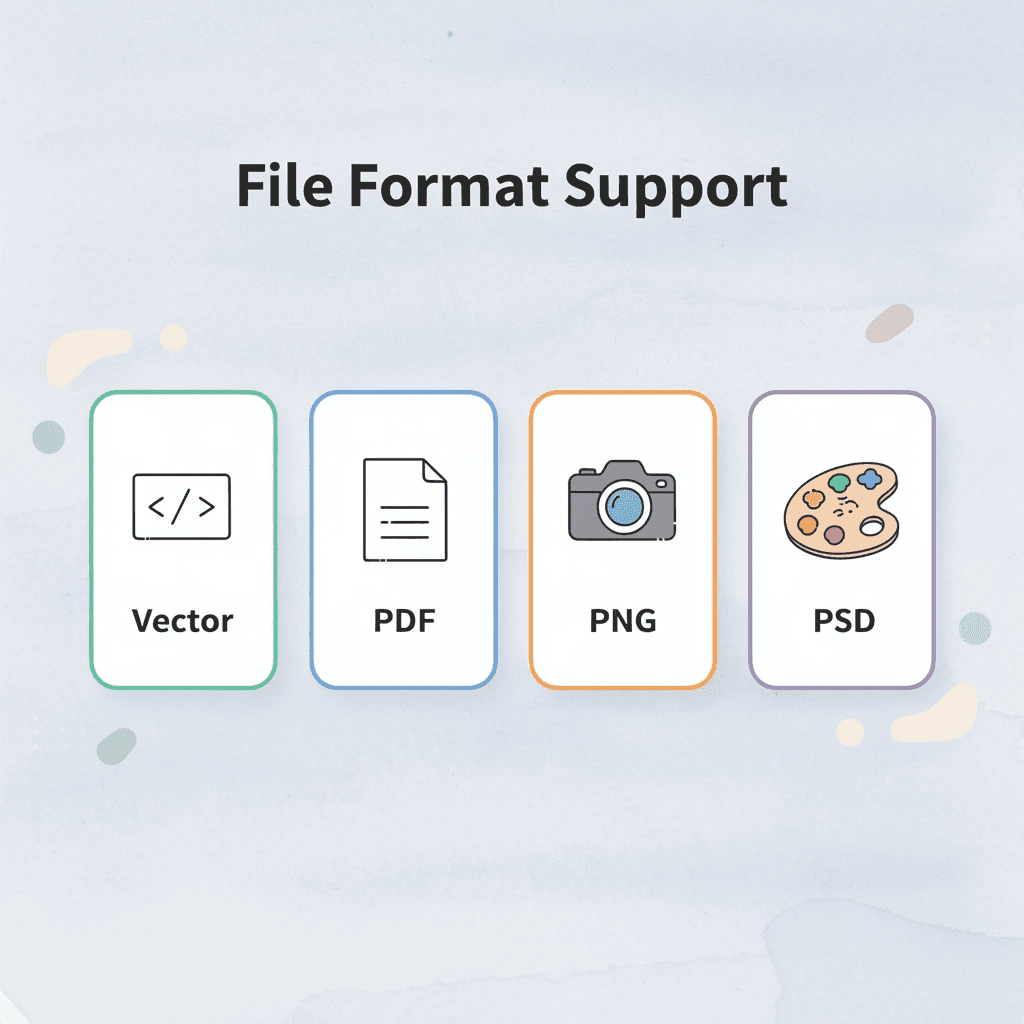
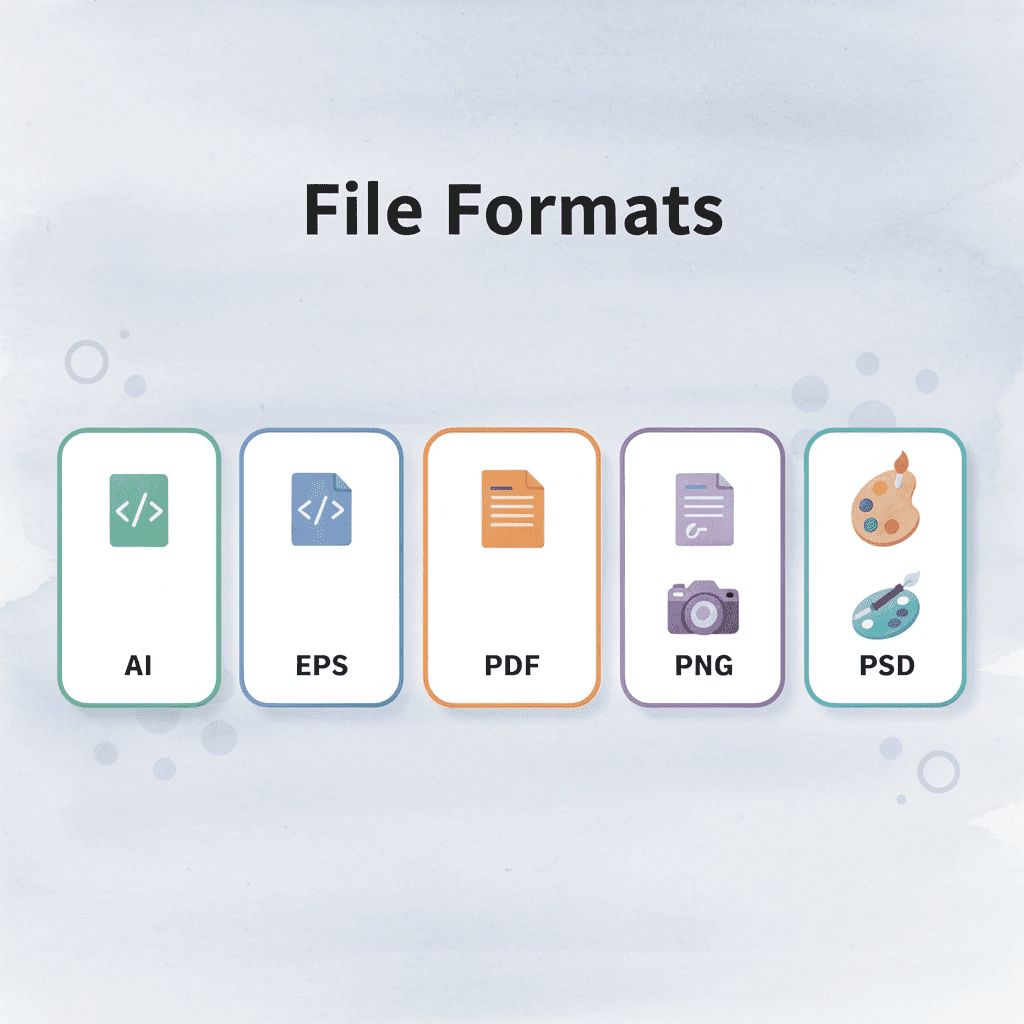
ooShirts accepts multiple file formats, including AI, EPS, PDF, PNG, PSD, and JPG files, and reviews every submission before production to catch resolution problems, color mode errors, and format mismatches. Our expert team converts files when necessary, optimizes them for the chosen printing method, and contacts you directly if adjustments are needed before production. This proactive review process eliminates the guesswork behind most printing failures.

🎯 Key Point: Our pre-production review catches file issues before they become costly printing mistakes, saving you time and money.
“Proactive file review eliminates the guesswork that causes most printing failures in custom apparel production.” — ooShirts Quality Team

| File Format | Best Use Case | ooShirts Support |
|---|---|---|
| AI/EPS | Vector graphics, logos | Full optimization |
| Multi-element designs | Format conversion | |
| PNG | Transparent backgrounds | Resolution check |
| PSD | Layered artwork | Layer management |
| JPG | Photo-based designs | Quality enhancement |
💡 Tip: Upload your highest-quality file available – our team will handle all the technical optimization to ensure perfect printing results every time.
Free Expert Review Catches Problems Before Production
Every uploaded file undergoes a manual quality review, where trained designers check resolution at print sizes, verify that color profiles match the printing method, and confirm text readability at production size. If a file fails to meet the 150 DPI requirement or contains RGB rather than CMYK separations, our team provides specific fixes instead of rejecting the order. This prevents receiving shirts that look nothing like your screen preview.
Format Flexibility Without Quality Compromise
You can upload a layered PSD file from Photoshop, a vector AI file from Illustrator, or a high-resolution PNG from Canva, and ooShirts handles the backend conversion for screen printing, DTG, or DTF. The system preserves transparency channels for designs on coloured fabric, maintains vector sharpness for logos, and adjusts color profiles so your navy blue prints look accurate. This lets you work in tools you already know instead of learning new software.
How do resolution standards protect your printing investment?
Most printing companies accept low-resolution files and blame you when the final product looks blurry. Our ooShirts service requires 150 DPI as a baseline and recommends 300 DPI for detailed artwork, catching undersized files during review and offering solutions like vectorization or image recreation before charging you for a flawed print. According to our internal quality data, this standard prevents roughly 60% of potential resolution-related failures that would otherwise result in reprints or refunds.
Why does expert review matter for larger orders?
As orders grow from ten shirts for a family reunion to two hundred for a nonprofit fundraiser, the hope-and-pray method becomes expensive. Services like ooShirts shift risk away from the customer by embedding expert review into every order, turning file preparation into a guided process that catches errors before ink touches fabric.
Direct Communication When Files Need Work
If your submitted file won’t produce acceptable results, ooShirts emails you with clear explanations of the problem (pixelation at chest-width size, missing fonts, wrong color space) and actionable steps to fix it. We describe what will happen if the file prints as-is, then offer to handle corrections ourselves or guide you through adjustments in your design software. This transparency keeps timelines predictable and eliminates surprises when opening your package.
Start Designing Your Custom Shirts Today
Knowing about file types and resolution rules doesn’t guarantee professional results. A gap exists between knowing something and doing it, and that’s where most custom shirt projects fail. Technical problems like blurry edges or washed-out colors can hide inside files that appear correct.

🎯 Key Point: Even perfect-looking files can contain hidden technical issues that ruin your final shirts.
That’s where ooShirts removes the guesswork. We accept every major format (AI, EPS, PDF, PNG, PSD, JPG) and review each upload for resolution, color accuracy, and scalability before production. If adjustments are needed, our team handles conversions and optimizations at no extra cost. We catch problems early so your shirts print sharp, vibrant, and exactly as you imagined.
“Technical problems like blurry edges or washed-out colors can hide inside files that look correct, making professional review essential for quality results.” — Print Industry Standards
💡 Tip: Upload in your original format – our experts will optimize it for the best possible print quality.
Upload your design to ooShirts.com in any format. You’ll receive instant feedback, clear proof, and expert guidance before production. No credit card or advanced design skills required.
✅ Best Practice: Start with your highest quality file; we’ll handle all technical optimization from there.
Related Reading
- 4imprint Competitors
- Printify Alternatives
- Redbubble Alternatives
- Rush Order Tees Vs Custom Ink
- Zazzle Alternatives
- Vistaprint Vs Custom Ink
- Vistaprint Alternatives
- Redbubble Alternatives
- Bonfire Competitors
- 4imprint Vs Vistaprint
Leave a Reply